Key Takeaways
A home server for beginners can start small: an old computer, a clear purpose, and a little patience are often enough.
- Decide what you want the server to do before buying hardware.
- Reuse a suitable PC or mini PC if it meets your storage and network needs.
- Keep the first setup simple with one operating system and one service.
- Protect files with separate backups rather than relying on RAID alone.
- Use updates, strong passwords, a firewall, and a VPN for safer access.
What a home server can do for you
A home server is simply a computer that provides services to other devices on your network. It might hold family files, stream media, run home automation software, or provide a shared place for backups. You do not need a server-room mindset to begin; you need a useful task and a willingness to learn gradually.
Common uses, from file storage to media streaming
The most approachable use is shared storage. You can keep documents, photos, music, and other files in one place, then access them from a laptop, desktop, phone, or television. A server can also support media streaming, provided the hardware and software suit the files you want to play.
Other possibilities include automatic computer backups, a private photo library, a small website for local use, or tools that work with smart-home devices. Start with one or two jobs rather than trying to recreate every online service at once. A clear first purpose makes nearly every later decision easier.
Benefits of running services at home
Running a service locally gives you direct control over the hardware, the stored data, and the timing of updates. You can choose where files live and avoid depending on an internet connection for every local task. It can also be a satisfying way to learn how operating systems, networking, storage, and permissions fit together.
There is a practical benefit for a household, too. Shared folders can reduce duplicated files across several computers, while local streaming can be convenient when everyone is connected to the same network. The value comes from solving a real annoyance, not from collecting services for their own sake.
Trade-offs involving cost, maintenance, and power use
A home server is not a one-off purchase that you forget about. You may need extra drives, replacement parts, electricity, cooling, and time for updates or troubleshooting. Older hardware can cost little to acquire but use more power, make more noise, or fail sooner than a newer small computer.
Think about the ongoing routine before you begin. You will need to check storage space, respond to alerts, test backups, and occasionally restart or repair a service. A modest setup that you understand is usually more useful than an ambitious one that becomes another unfinished project.
When a cloud service may be the better choice
A hosted service may suit you better when you want minimal maintenance, easy access while travelling, or built-in support and recovery options. It can also make sense if your home internet connection is unreliable or you do not want a computer running continuously.
The choice does not have to be all or nothing. You might keep frequently used files locally while using a separate service for off-site copies. Compare the recurring cost, privacy arrangements, storage limits, convenience, and effort involved before deciding.
Choosing the right home server hardware
You do not need the fastest computer in the house to begin. The right choice depends on how many people will use it, which services you plan to run, and how much storage you need. A quiet, dependable machine with room to grow is often a better fit than a powerful gaming computer.
Repurposing an old PC, laptop, or mini PC
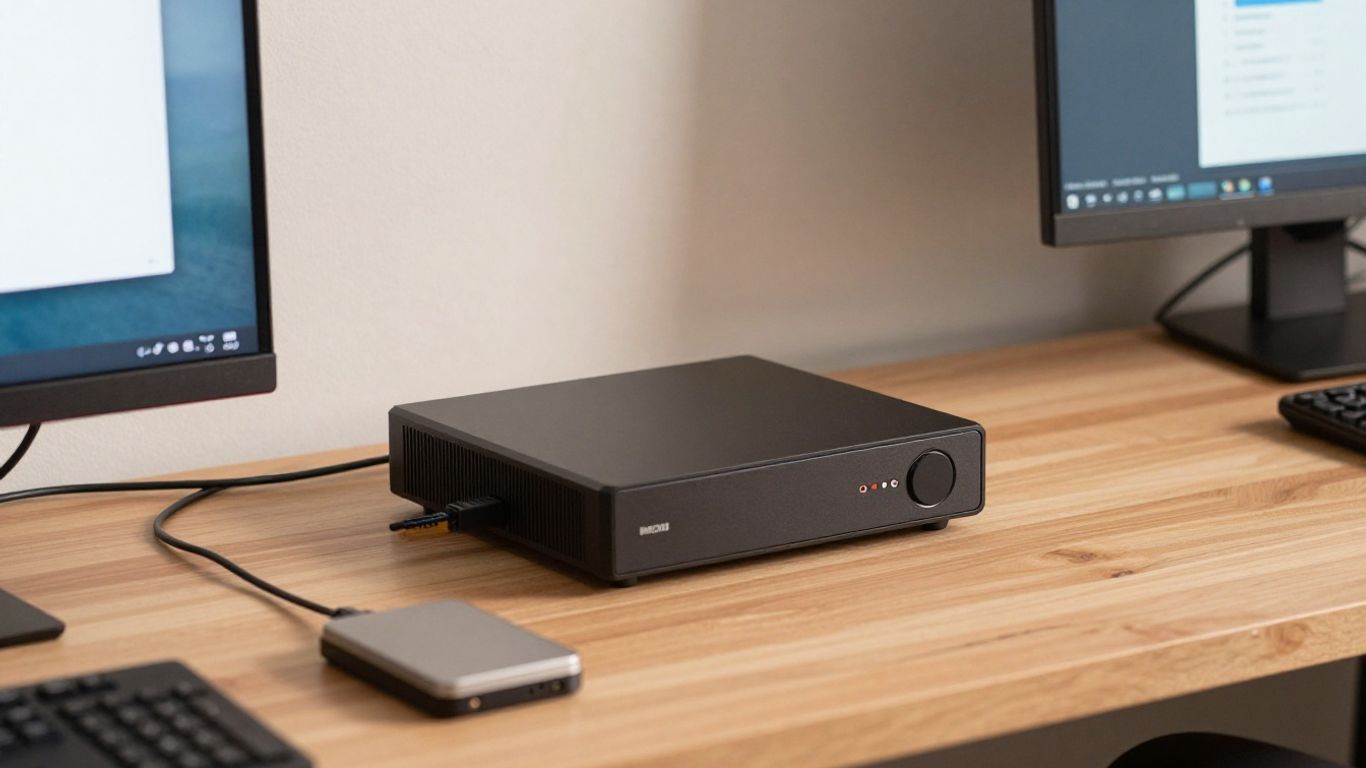
An unused desktop, laptop, or mini PC can be a sensible starting point. Check that it boots reliably, has enough connections for your intended drives, and can run for long periods without overheating. A laptop has the useful advantage of a built-in battery, although an ageing battery should not be treated as your only protection against power cuts.
Before installing anything, clean dust from the vents and check the condition of the storage drive. Remove personal files and make sure anything valuable has been copied elsewhere. Reusing equipment keeps the first experiment affordable and lets you learn without committing to a specialised build.
Comparing CPU, RAM, storage, and network ports
For file sharing and a few light services, a modern modest processor is usually sufficient. More demanding media work, several virtual machines, or many simultaneous users can require more processing power and memory. Storage capacity matters separately from processor speed, so consider both the amount of data and the number of drives you can install.
A wired network connection is generally preferable for a stationary server because it is more consistent than relying on wireless conditions. Check the available network ports, USB connections, drive bays, and memory slots before buying parts. A simple checklist prevents an inexpensive machine from becoming an awkward upgrade project.
Understanding power consumption and noise
Because a server may run for many hours, power use deserves attention even when the purchase price is low. Older desktop components can draw more electricity than a small modern system, while spinning hard drives may add vibration and noise. Place the machine somewhere ventilated but not in a bedroom or enclosed cupboard.
Listen for rattling fans, clicking drives, and sudden changes in operating temperature. These signs do not always mean immediate failure, but they deserve investigation. If the server is unpleasant to live with, you are less likely to maintain it properly.
Planning for storage expansion and backups
Choose a case and motherboard that leave you a sensible path for adding storage. You may need a larger drive, an additional drive for backups, or an external device later. It is better to have a little unused capacity than to fill the only drive immediately.
Keep backup storage separate from the main server whenever possible. Extra space inside the same case can help with convenience, but it does not protect you from every failure, including theft, fire, or a mistake that deletes files across the system.
Picking an operating system and server platform
Your operating system sets the tone for the whole project. Some choices offer a graphical interface and guided setup, while others expect you to work more often in a terminal. There is no prize for choosing the most complicated option; choose the one you can update and recover confidently.
Choosing between Linux, Windows, and turnkey systems
Linux is popular for home servers because many server tools and guides support it, but it can require more comfort with commands. Windows may feel familiar if you already use it, though licensing and server features should be considered. Turnkey systems can simplify storage and service management by presenting common tasks through a web interface.
Read the installation and recovery instructions before you commit. You want to know how to reinstall the system, regain access, and restore your data if the boot drive fails. Familiarity is a valid reason to choose one platform over another.
Comparing Docker, virtual machines, and direct installations
Docker runs applications in containers, which can keep their files and settings more organised than a collection of unrelated direct installations. Virtual machines run separate operating systems on the same physical computer, giving you stronger separation but requiring more memory and administration. Direct installation is often the most straightforward approach for a single service.
Docker can be a useful next step once you understand basic storage, networking, and permissions. For a first service, however, do not choose a method just because it is fashionable. The simplest setup that meets your needs is usually the easiest to troubleshoot.
Beginner-friendly options such as Ubuntu Server and TrueNAS
Ubuntu Server is one option for a general-purpose server, while TrueNAS is an option you may consider when storage management is the central task. Both appear in many beginner discussions, but their setup experiences and terminology are different. Read current documentation and confirm that your hardware is suitable before installing either one.
Try the system in a test environment if you can. Even a spare drive can give you a low-risk way to practise creating users, sharing a folder, installing updates, and restoring a configuration. That small rehearsal can make the real setup feel much less mysterious.
Deciding how much technical control you need
Ask yourself how often you want to use a terminal, inspect logs, and make configuration changes by hand. If you enjoy learning, a more manual platform can offer flexibility and insight. If you mainly want shared storage, a guided interface may help you stay focused on the household task.
Your answer can change over time. Begin with a platform that leaves room to learn without making basic maintenance intimidating. You can rebuild later once you know which services you genuinely use.
Setting up your home server step by step
A careful first setup saves trouble later. Write down the purpose of the machine, the administrator details, the network name, and where backups will live before you start. Work through one change at a time so you can identify what caused a problem.
Installing the operating system and creating an administrator account
Download the operating system from its official source and create installation media according to its instructions. During setup, choose a strong administrator password and create a separate everyday account where the platform allows it. Avoid using an obvious name or reusing a password from email or social media.
Record recovery information somewhere safe but not on the server itself. Once installation finishes, apply available updates before adding services. This gives you a cleaner starting point and reduces the chance of troubleshooting an old package later.
Connecting the server to your home network
Connect the server to your router, preferably with an Ethernet cable if the machine will stay in one place. Wired connections tend to make file transfers and administration more predictable. Confirm that the server can reach the local network and, if needed, the wider internet for updates.
Keep the first test local. Open the service from another device in your home and check that files can be read, written, and removed as expected. Local success is a useful foundation before you consider access from outside the house.
Assigning a reliable local IP address
Devices on a home network usually receive addresses automatically, but an address can change after a restart. A router reservation is often a friendly way to give the server the same local address without manually configuring every network detail on the machine. The exact menu name varies by router.
After setting the reservation, restart or reconnect the server and confirm the address from the router. Update your notes with the server name and address. If a service later stops responding, you will know where to begin checking.
Installing your first service with Docker or native packages
Choose one modest service for your first installation, such as a shared folder or a backup destination. Follow the platform’s documentation and keep configuration files in a known location. If you use Docker, understand where its persistent data is stored; if you use native packages, note which directories and system services are involved.
Test the service with an ordinary user account rather than only the administrator account. Check access from a second device, restart the server, and confirm that the service returns correctly. These simple tests reveal whether the setup is dependable before you add anything else.
Managing storage and protecting your data
Storage planning is where a home server becomes either reassuring or stressful. Decide who should access each folder, how much space different files need, and what happens if a drive fails. Keep your main files and your recovery plan separate in both your thinking and your physical setup.
Organizing shared folders and user permissions
Use separate folders for documents, media, backups, and temporary files rather than placing everything in one open share. Create individual user accounts where possible, then grant only the access each person needs. This makes accidental deletion easier to investigate and limits the impact of a compromised account.
Give backup jobs their own destination and avoid granting broad write access to every household device. A tidy folder structure also helps you migrate to a larger drive later. Name folders plainly enough that another person could understand them without asking you.
Choosing between hard drives, SSDs, and RAID
Hard drives generally provide large capacity at a lower cost, while SSDs are quiet and responsive. SSDs can be attractive for the operating system or frequently used applications, with hard drives handling larger collections of files. Consider endurance, warranty, connection type, and the role of each drive rather than focusing on speed alone.
RAID can keep a service available when one drive fails, depending on the arrangement, but it is not a complete backup. It does not protect against accidental deletion, malware, fire, or a mistake copied across every drive. Treat it as an availability tool, not your only safety net.
Creating the 3-2-1 backup strategy
The 3-2-1 approach is a useful way to think about copies: keep three copies of important data, on two different kinds of storage or devices, with one copy stored elsewhere. The exact equipment can vary, and you do not have to build the complete arrangement on the first day.
Start by identifying the files you could not replace. Then choose a backup schedule that suits how often those files change. A backup is only convincing after you restore a sample file and confirm that the copy is usable.
Monitoring disk health and available capacity
Check free space regularly and set an alert before a drive becomes full. Operating systems and server platforms may provide health information for drives, but treat warnings as prompts to investigate, not as a guarantee that everything is fine. Unusual noises, slow transfers, and repeated errors deserve attention.
Keep a record of drive names, purchase dates, and replacement plans. When capacity falls, remove unnecessary files or expand deliberately rather than waiting for a service to fail. Good storage management is mostly quiet, repetitive work, which is exactly why it helps to make it routine.
Securing your home server
A server connected to your network is another computer that needs care. Security is less about one clever setting and more about reducing unnecessary access, applying updates, and noticing unusual behaviour. Begin with local access and add remote access only when you understand the risks.
Using strong passwords, updates, and least-privilege access
Use long, unique passwords for the operating system, router, administrator account, and each service that supports separate credentials. Turn off unused accounts and avoid giving administrator rights to everyday users. A password manager can make unique credentials easier to manage.
Apply operating system and service updates through trusted sources. Before a larger update, check that your backups work and note how to roll back or restore the service. Security improves when maintenance is regular rather than postponed until something breaks.
Configuring a firewall and limiting open ports
A firewall can restrict which devices and services are allowed to communicate with the server. Allow only what you need, and review the rules after installing or removing a service. On your home network, a file share may need to be reachable locally but not from the internet.
List every service that is listening and ask whether it is still necessary. Removing an unused service is often safer than trying to secure something you no longer understand. Keep router settings and server settings aligned so an accidental rule does not expose more than intended.
Accessing services remotely with a VPN
A VPN can provide a controlled route back into your home network when you are away. It is generally preferable to exposing several separate services directly to the internet, but it still needs strong credentials, updates, and careful configuration.
Test remote access from a mobile connection rather than while you are still on home Wi-Fi. Confirm that you can reach only the resources you intended. If the VPN stops working, keep a local administration path available so you do not lock yourself out.
Recognizing common risks with port forwarding
Port forwarding tells your router to send outside traffic to a device inside your home. That can be useful for particular applications, but it makes the forwarded service easier for internet-based scanning and attacks to find. An exposed login page should never be treated as private simply because it runs at home.
If you do not need outside access, do not forward a port. If you do need it, document the rule, limit the service, use multi-factor authentication where available, and review logs. A VPN is often a safer starting point for personal access than publishing several services separately.
The safest service to expose is usually the one you do not need to expose.
That principle is not meant to make home servers frightening. It is a reminder to keep the public edge small, understandable, and easy to review.
Maintaining and troubleshooting your server
Maintenance turns a promising setup into a dependable one. Set aside a little time each month to check updates, storage, backups, and unusual alerts. When something fails, avoid changing five things at once; a calm, written process will usually get you further.
Monitoring uptime, temperatures, and system resources
Watch processor load, memory use, temperatures, storage capacity, and the time since the last restart. You do not need a wall of charts for a small home server. A few useful alerts are better than a dashboard you never open.
Notice patterns rather than reacting to every brief change. A steady rise in memory use, repeated high temperatures, or storage filling faster than expected may point to a service that needs attention. Keep the machine ventilated and investigate fan or drive noises early.
Updating software without breaking services
Read update notes when they are available and avoid applying major changes immediately before you need the server. Back up configuration files and record the current versions of important services. If the platform supports snapshots or an easy rollback, understand how that feature works before relying on it.
Update one layer at a time where practical: operating system, platform, then applications. After each change, test the service from another device. This makes it much easier to identify which update caused a problem.
Diagnosing network, storage, and container problems
Start with the simplest questions. Is the server powered on, does it have the expected network address, can another device reach it, and is the service running? For storage issues, check free space, drive health, permissions, and recent error messages before replacing hardware.
Container problems often involve a missing data path, an incorrect permission, a port conflict, or a configuration value that was not saved. Read the logs, compare the current setup with your notes, and change one setting at a time. A short pause to gather evidence is usually faster than repeated guesses.
Documenting configurations and planning recovery steps
Keep a plain-language record of the hardware, operating system, network address, service names, storage locations, backup schedule, and administrator recovery process. Do not store sensitive passwords in an unprotected document. Your notes should help you rebuild the system even if the original machine is unavailable.
Practise restoring one file and, eventually, rebuilding a service from your documentation. Write down what worked and what was confusing. Recovery planning may feel unnecessary while everything is running, but it is one of the most valuable parts of owning a home server.
Frequently Asked Questions
Do I need a powerful computer for a home server?
Usually not. A modest computer can handle file sharing, backups, and a few light services, while more demanding media work or multiple virtual machines may need additional processor power and memory.
Can I use an old laptop as a home server?
Yes, if it is reliable, adequately ventilated, and has suitable storage. Check the battery, drive health, ports, and cooling system, and keep important data backed up somewhere separate.
Should my home server use Wi-Fi or Ethernet?
Ethernet is generally the steadier choice for a stationary server. Wi-Fi can work for lighter tasks, but signal quality, interference, and connection changes may affect transfers and administration.
Is RAID the same as a backup?
No. RAID can help a service continue after certain drive failures, but it does not protect against accidental deletion, malware, theft, or damage to the whole machine. You still need separate backups.
How can I access my home server while travelling?
A VPN is a common approach because it can provide controlled access to your home network. Set it up carefully, use strong credentials, keep it updated, and test it before you need it.
Should I expose my home server directly to the internet?
Only when there is a clear need and you understand the service, updates, authentication, and monitoring involved. Avoid forwarding ports for unused services, and consider a VPN for personal remote access.
How often should I maintain my home server?
Check it briefly each month and review backups, updates, storage, and alerts. Restore a sample backup periodically, because a copy is only useful if you can actually recover from it.