Key Takeaways
A home server can be as simple or capable as you need it to be. Start with one useful job, keep your first setup manageable, and build good security and backup habits from the beginning.
- Choose a clear first purpose, such as sharing files or streaming media at home.
- Use hardware that suits your storage needs, household, and available space.
- Pick an operating system and software you feel comfortable maintaining.
- Test local access and file restoration before relying on the server.
- Keep services updated, limit remote access, and add new features gradually.
What a home server can do for you
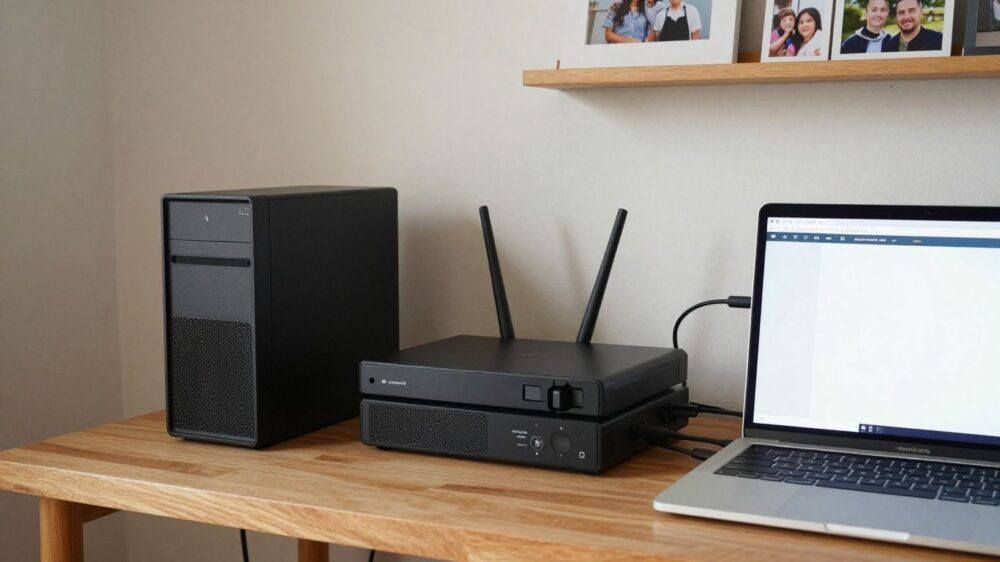
A home server is a computer that stays available on your home network so other devices can use files or services from it. You might already have a specific job in mind, or you may simply want to learn how the pieces fit together. For a home server for beginners, starting with one everyday need makes the choices much less overwhelming.
Store and back up files across your devices
A shared folder lets you reach documents, photos, and other files from more than one device on your home network. You can organise folders by person or purpose, then set access permissions so household members see what they need. Remember that a shared copy is not automatically a backup: if the server or its drive fails, files stored only there may still be lost.
Stream movies, music, and photos at home
A server can keep media in one place for playback on compatible devices around the house. The experience depends on your network, the server’s ability to handle the media, and the apps or players you use. If streaming is a priority, try a small collection first and check how it plays on the devices your household actually uses.
Run smart home tools and personal apps
Some people use a home server to run smart home tools or other personal apps. Each service has its own requirements, so check what it needs before installing it, including supported operating systems and memory. A computer that handles basic file sharing may not be a good fit for several demanding services at once.
Decide which tasks matter most before you start
It helps to write down what you want the server to do before shopping or installing software. Keeping the first version focused gives you a practical way to judge hardware and avoid setting up services you may not use. If you are weighing different ideas, one clear first job is a useful filter for decisions about cost, complexity, and maintenance.
Choose hardware that fits your needs
You do not need to build a powerful machine just to learn the basics. The right choice depends on what you plan to store or run, how much space you have, and how comfortable you are with used equipment. Think about the whole setup, including drives, network connection, and where the machine will sit.
Reuse an old PC or buy a small, low-power machine
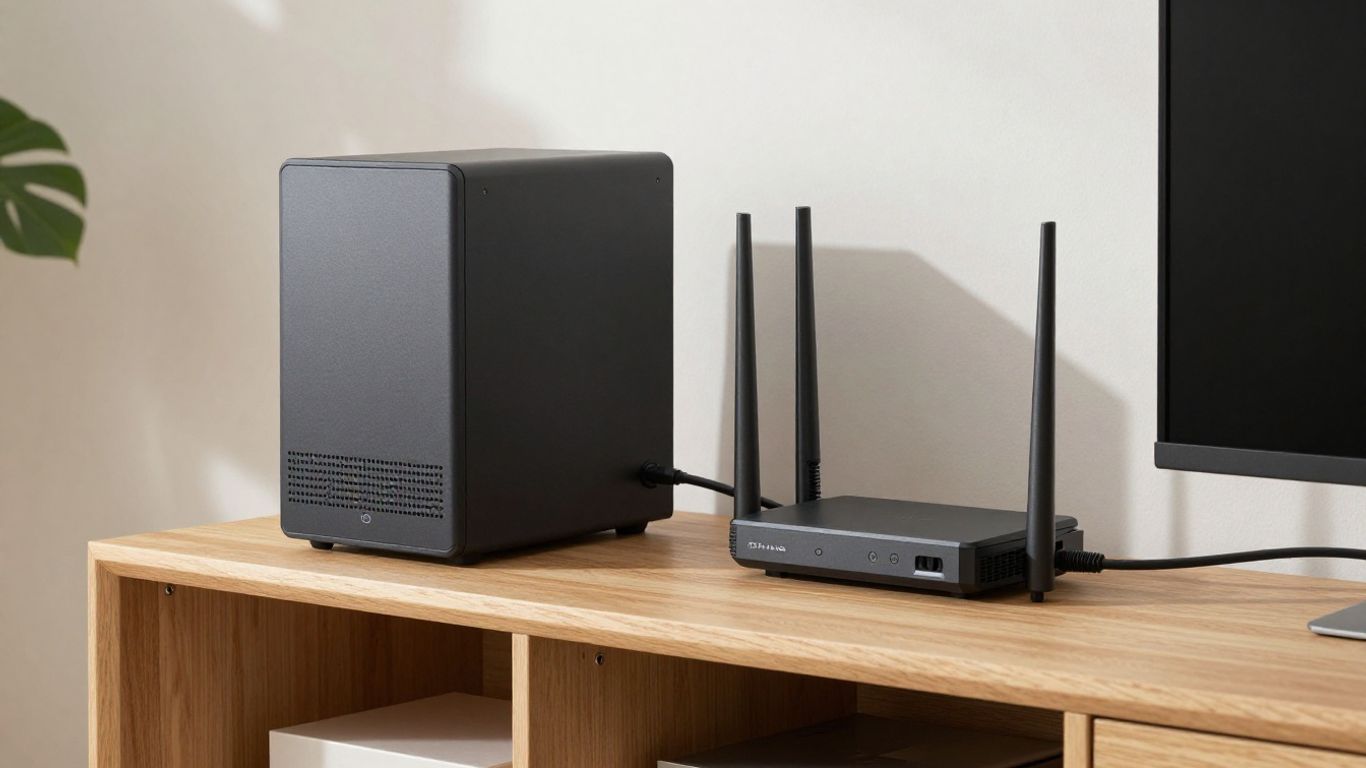
An old desktop or laptop can be a sensible starting point if it works reliably and has enough room for the storage you need. Before reusing one, check its condition, available connections, and whether it can stay on where you plan to put it. A compact, low-power machine may suit a smaller space or a server that runs for long periods, but compare its capabilities with your intended tasks.
To keep the decision grounded, consider the trade-offs rather than chasing the newest hardware:
- Reusing a working computer can make use of equipment you already own.
- A small machine may take up less space and be easier to place near your router.
- New hardware gives you a chance to choose storage and connections for your needs.
- Either option still needs enough capacity and reliable cooling for its workload.
Pick the route that you can comfortably set up and maintain. For many first projects, a straightforward machine that already works is more useful than a complicated build with features you do not need.
Compare storage capacity, memory, and processor needs
Storage is often the first capacity question: estimate what you want to keep and leave room for growth. Memory and processor demands vary with the services you plan to run, so check each service’s requirements instead of guessing from a single general rule. If your plans include several uses, allow some headroom rather than choosing hardware that only just meets the minimum.
Plan for power use, noise, and where the server will live
A server can be on for long stretches, so consider its power use alongside purchase cost. Fans, drive noise, and warmth may matter if the computer will sit near a living or sleeping area. Choose a stable spot with airflow and a nearby network connection, and make sure you can reach the machine when it needs attention.
Know when a network-attached storage device makes sense
A network-attached storage device may suit you if your main goal is shared storage and you prefer a purpose-built appliance over configuring a general-purpose computer. Check its storage options, user controls, and supported features against your actual needs. If you want to experiment with a broader range of apps, a general computer may offer a more flexible starting point, though it can require more setup.
Pick an operating system and server software
The operating system is the foundation of the server, while server software provides the jobs you want it to do. Some setups offer a graphical interface; others expect you to use a command line for more tasks. Choose based on what you need to run and how you want to manage the machine, not just on what sounds most advanced.
Choose between a beginner-friendly interface and a command line
A graphical interface can make common settings easier to find, particularly if you are new to managing a server. A command line can be efficient and flexible, but it may take time to get comfortable with commands and their effects. Before you commit, look at the setup steps and routine maintenance for the system you are considering.
Explore Linux, Windows, and dedicated server systems
Linux, Windows, and dedicated server systems each have different interfaces, supported software, and maintenance routines. Your familiarity with one system can be a reasonable starting point, though it is still worth checking whether it supports the services you want. Read the installation and recovery instructions too, so you know what you will do if an update or configuration change causes trouble.
Match software to file sharing, media streaming, or other tasks
Start by selecting software for the job you identified earlier, then check how it handles users, permissions, and updates. For a clearer comparison, make a short list of the requirements that matter for your planned services:
- Which operating systems does the software support?
- What hardware and storage does it require?
- How are access permissions and updates managed?
- Can you find clear setup and recovery instructions?
Use those answers to narrow your options before installing anything. A service that fits your operating system and your comfort level is easier to keep working over time.
Check compatibility before installing apps or services
Compatibility is about more than whether an app installs. Check that it supports your operating system, processor type, and any other services it depends on, and confirm how it will receive updates. A little reading before installation can save you from building a setup around software that does not fit your machine.
Set up your home server
A calm, staged setup is easier to troubleshoot than changing several things at once. First connect the machine to your network, then install and update the operating system before adding shared data or extra services. Keep notes as you go, especially if you change network or account settings.
Connect the server to your router and local network
Connect the server to your router and confirm that it appears on your home network. A wired connection can be a practical choice when the computer is near the router, while a wireless connection may suit a location where running a cable is awkward. Follow your router’s instructions and note how you will find the server from another device.
Install the operating system and apply updates
Use the operating system’s installation instructions and take care to select the correct destination drive. Once installation is complete, connect to the network and apply available updates before adding services. If the installer offers settings you do not understand, pause to check the documentation rather than choosing at random.
Create user accounts and organize shared folders
Give each person their own account when the system supports it, and create folders with clear names that make sense to your household. Set permissions deliberately: private files should not be shared more widely than you intend. A simple folder structure is easier to explain and maintain than a maze of deeply nested folders.
Test access from another device before adding services
Use a second computer or phone on the same home network to check that you can find the server and open a test file. This gives you a chance to catch naming, connection, or permission issues while the setup is still simple. Once that basic access works, you have a dependable starting point for adding a service later.
Protect your server and your data
A server connected to your home network needs the same thoughtful care as any other computer holding personal files. Make account access intentional, keep software current, and plan how you will recover information if something goes wrong. Good security does not have to be complicated, but it does need regular attention.
Use strong passwords and keep software updated
Use a unique, hard-to-guess password for each account that can access the server, and avoid sharing administrator access when a standard account will do. Install operating system and app updates through their normal update processes, and check that updates have not changed settings you rely on. If the system supports additional sign-in protections, review how they work before enabling them.
Set up backups and test that you can restore files
Keep a separate backup of important files rather than treating the server as the only copy. A backup plan might use another storage device or another suitable destination, depending on your needs and setup. Restore a sample file occasionally: a backup is only useful if you can recover from it.
Limit remote access and avoid exposing services unnecessarily
If you only need the server at home, you may not need to make it reachable from outside your network. Remote access can add configuration and security responsibilities, so understand what is being exposed before changing router settings. If you later decide you need outside access, follow the service’s security guidance and remove access you no longer use.
Use a firewall and understand basic network permissions
A firewall helps control network connections, but it does not replace careful account and service settings. Check which connections are allowed and whether each service needs to be reachable by every device on your network. Think of permissions as a set of doors: leave open only the ones your household needs, and review them when you add or remove a service.
Keep the server’s access as narrow as your household’s needs allow.
That simple habit helps you avoid leaving unused paths open. Revisit the settings after major changes, rather than assuming the original choices remain right forever.
Maintain and expand your setup
A home server needs occasional attention, but maintenance can stay manageable if you make it part of your routine. Check that the system is running normally and that files and services remain accessible. When something changes, make one adjustment at a time so you can identify what helped or caused a problem.
Monitor storage space, temperatures, and system health
Check available storage from time to time and pay attention to warnings from the operating system or drives. Keep vents clear and make sure the server has enough airflow, especially if its location is warm or enclosed. A quick periodic check can help you spot a full drive or unusual heat before it interrupts normal use.
Troubleshoot common connection and permission problems
When a device cannot reach the server, first check that both devices are connected to the home network and that the server is powered on. If you can reach it but cannot open a folder, review the account and folder permissions. Change one setting at a time and test again; that makes it easier to work out what fixed the issue.
Add services gradually as your needs grow
Once file access or your first chosen task works reliably, you can consider adding another service. Check its requirements and security implications before installation, then test it without changing unrelated settings. If the server becomes difficult to maintain, step back and remove features that are no longer useful.
Document settings so future changes are easier
Keep a short record of the operating system, shared folder locations, accounts, and important settings. Do not write passwords in an unprotected note; use a secure method for storing credentials. Clear documentation makes updates, troubleshooting, and handovers to another household member much less stressful.
Frequently Asked Questions
What is a home server used for?
A home server can provide shared file storage, backups, media access, or other services to devices on your home network. What it can do depends on its hardware, software, and configuration.
Do I need a powerful computer for a home server?
Not necessarily. The hardware you need depends on what you plan to store and run, so check the requirements of your chosen services before buying or reusing a computer.
Can I use an old computer as a home server?
Often, a working old computer can be a useful starting point. Check its condition, storage options, network connection, cooling, and ability to run the software you want.
Should I connect my home server with Wi-Fi or Ethernet?
Either may work, depending on your network and where the server will be placed. A wired connection can be convenient when the server is near the router; wireless may be useful when a cable is impractical.
Is a home server automatically a backup?
No. Files stored only on the server can still be lost if its hardware fails or data is deleted. Keep a separate copy of important files and test that you can restore them.
Can I access my home server when I am away?
It may be possible, but remote access requires extra configuration and careful security choices. Avoid exposing services unnecessarily, and follow the relevant software and router instructions if you decide you need it.
How often should I maintain a home server?
Check it regularly for updates, available storage, unusual heat, and warnings. How often you need to do this depends on your system and how much you rely on it, but a simple routine helps catch problems early.