Key Takeaways
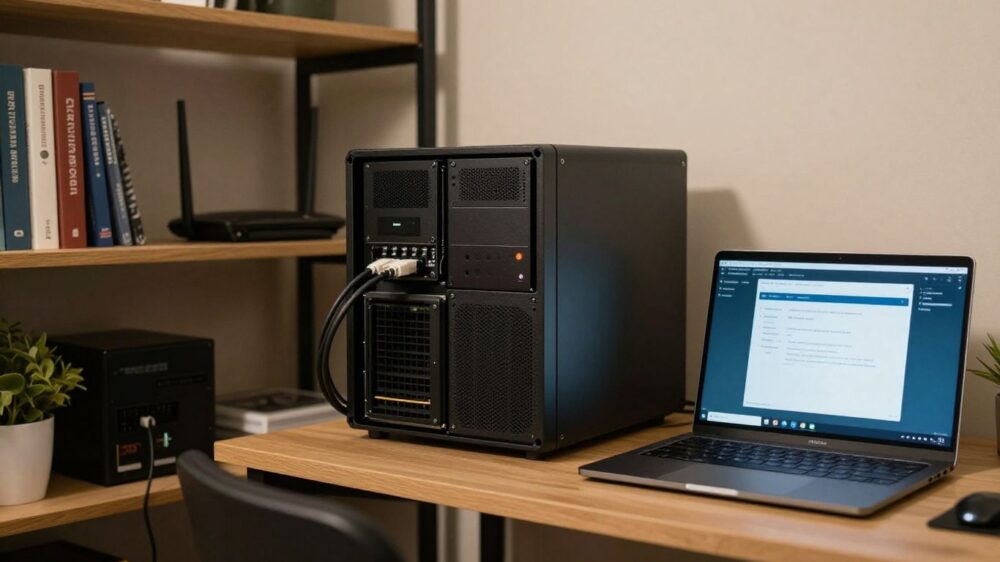
A home server for beginners does not need to be complicated or expensive. Start with one useful purpose, keep it on your local network, and build good security and backup habits before adding more services.
- Repurpose suitable hardware before buying a specialised system.
- Use Ethernet, a reserved local IP address, and clear device names.
- Begin with one or two services that solve a real household problem.
- Keep accounts, updates, firewalls, and remote access under control.
- Treat backups and restore testing as part of the server setup.
Understand what a home server can do
A home server is a computer that provides files, applications, or other resources to devices on your household network. It can be a spare desktop, a small computer, or a dedicated storage appliance. The best first server is usually the one that solves a modest problem reliably rather than the one with the longest feature list.
Common uses for beginners
You might use a server to share family documents, store photos, host music and video, or run a small website for learning. It can also provide a place for development projects and automated household tasks. Choose one clear starting purpose so you can tell whether the setup is working.
A shared folder is often the easiest first project because computers, phones, and tablets can use it without needing a separate application. Once that feels comfortable, you can add a media library or a private development environment without changing the basic idea.
Home server vs. NAS vs. cloud storage
A home server is a general-purpose computer running services for your network. A NAS is usually designed mainly for storing and sharing files, while cloud storage keeps data on someone else’s infrastructure and is accessed through the internet. These categories overlap, but the practical difference is who manages the hardware and where the data lives.
The choice depends on what you value. Local storage can work well when you want control and fast access at home, while cloud storage can be convenient when you need access away from home without maintaining equipment yourself. You can also use both, provided your important files have more than one copy.
Benefits, limitations, and ongoing responsibilities
Running a server gives you control over storage, software, and access within your home. It can be a useful way to learn about networking and computers while making everyday files easier to organise. The trade-off is that you become responsible for updates, passwords, hardware faults, and backups.
A server also consumes electricity and may create noise or heat. If the system is always running, check that it has adequate ventilation and that its power use suits your household. Simple systems are easier to maintain, especially when you are still learning.
Projects to try after the basics
After file sharing is stable, choose a project that extends one skill at a time. You could organise a household media library, host a simple personal site, or create a separate space for testing software. Avoid installing several unfamiliar services at once, because problems become much harder to isolate.
Keep notes as you go. Record the server address, service names, storage locations, and the steps needed to restart each application. Those notes will save time when you return to the project months later.
Choose the right hardware
You do not need a powerful gaming computer for a first home server. The right choice depends on how many services you will run, how much storage you need, and whether the machine will operate all day. Start by considering hardware you already own, then spend money only where it improves reliability or capacity.
Repurposing an old PC, laptop, or mini PC
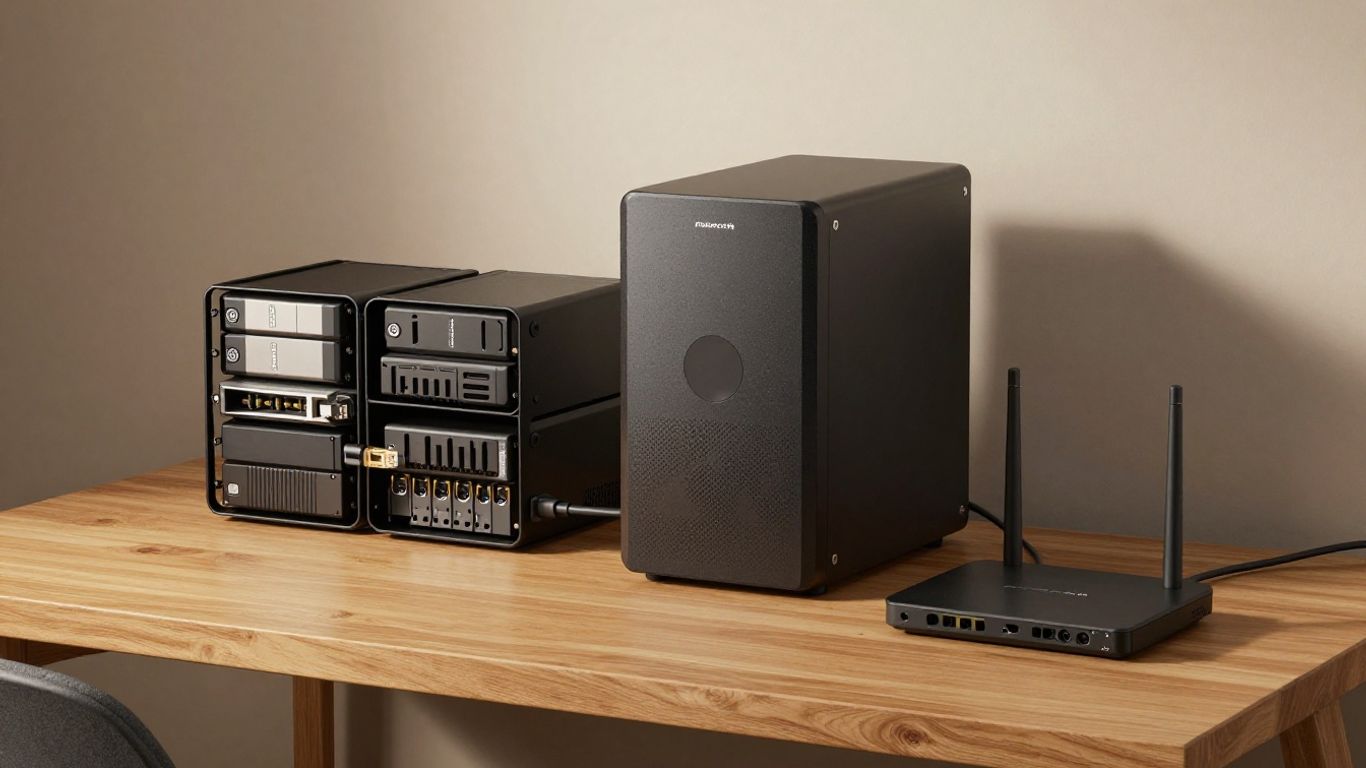
An old desktop can be a useful starting point if it still works reliably and has room for the drives you need. A laptop may be quiet and energy-efficient, while a mini PC can fit neatly beside your router. Before reusing anything, check its cooling, storage condition, power supply, and available network connection.
Remove software and accounts you no longer need, then install a clean operating system. A spare machine is a good learning platform because mistakes are less costly than they would be on a computer containing your only copy of important files.
Balancing performance, power use, and noise
A server that sits in a living area should not sound like a workshop. Look for modest processors, sensible cooling, and power-saving settings rather than buying the fastest hardware available. More processing power becomes useful when you run several demanding services at once, but it does not fix poor storage or network planning.
Think about the machine’s location as well. Keep vents clear, avoid damp or dusty spaces, and make sure you can reach the power switch and network cable without moving furniture.
Selecting storage drives and backup capacity
Choose storage based on your data and your backup plan, not only the advertised capacity. Operating system files and applications can often use one drive, while personal files sit on another. Leave room for growth so you are not forced into an urgent upgrade when the disk is nearly full.
Before buying drives, consider this short checklist:
- Estimate how much data you have now.
- Allow space for new photos, videos, and documents.
- Keep backup capacity separate from the main storage.
- Check drive health and replace questionable hardware.
That calculation gives you a more realistic budget than choosing a drive by price alone. Remember that a second drive inside the same machine is not a complete backup if theft, fire, or electrical damage affects the whole system.
When a Raspberry Pi or dedicated NAS makes sense
A small single-board computer can suit lightweight services and learning experiments, particularly when low energy use and a tiny footprint matter. A dedicated NAS can be a better fit when your main goal is straightforward file storage with multiple drive bays and a focused management interface.
Neither option removes the need for backups or security. Pick the platform that matches your comfort level, storage needs, and willingness to troubleshoot rather than assuming the smallest device is automatically the easiest.
Pick an operating system and server platform
The operating system shapes how you install software, manage users, and recover from problems. There is no single correct choice for every home, so favour documentation you can understand and a platform you are willing to maintain. Keep your first installation boring and predictable.
Comparing Linux, Windows, and NAS operating systems
Linux is widely used for servers and offers many lightweight options, but it may require more work at the command line. Windows can feel familiar if your household already uses it, though licensing and resource use may affect your decision. A NAS operating system usually focuses on storage and network administration rather than being a general desktop environment.
Choose according to the services you want to run and the instructions available for that platform. Compatibility matters more than reputation: check that the applications, file-sharing methods, and hardware you need are supported before installing.
Choosing between a desktop setup and a headless server
A desktop setup gives you a monitor and graphical interface on the server itself. That can make early learning less intimidating, especially when you are still finding your way around settings and folders. A headless server runs without a permanent screen and is managed from another computer.
You can begin with a screen attached and move to remote administration later. This gradual approach lets you learn how the machine works without making the first troubleshooting session unnecessarily difficult.
Using Docker to run multiple services
Docker packages an application and much of its required environment so several services can run on one host with fewer conflicts. It can make setup and removal cleaner, provided you understand where each service stores its data. Read the installation instructions carefully rather than copying commands without knowing what they change.
A small collection of services is easier to manage than a crowded server. Give each application a clear data folder, document its ports, and avoid exposing anything to the internet until you understand its security settings.
Understanding containers, virtual machines, and compatibility
Containers share the host operating system’s kernel and are usually lighter than virtual machines. A virtual machine runs a separate operating system and can provide stronger separation, but it generally needs more memory and processing capacity. Both approaches can be useful, although neither guarantees that incompatible software will work together.
Check processor architecture, operating system support, storage paths, and network requirements before committing to a design. If a service is essential, test it on a spare system first and keep a simple recovery path.
Set up your home network
Your network determines how reliably devices find and use the server. Begin with a wired connection and a clear naming scheme, then make changes one at a time. You do not need advanced networking features for a useful first setup.
Connecting the server with Ethernet
Connect the server to your router or network switch with Ethernet where practical. A cable usually provides steadier performance than wireless for large file transfers and avoids some of the signal problems found in busy homes. Place the server close enough that the cable is not stretched or bent sharply.
Wireless can be adequate for some small experiments, but a wired connection is a sensible default for a machine that provides files or media to several devices. Test transfers from the rooms where you expect to use the service.
Assigning a static local IP address
Your router normally assigns local addresses automatically, and those addresses can change. Use a DHCP reservation in the router so the server receives the same address each time, or configure a static address carefully if you understand the local network settings.
Write down the chosen address and make sure it does not conflict with another device. A stable address means your computers and services do not lose track of the server after a restart.
Configuring local DNS and device names
A friendly device name is easier to remember than a string of numbers. If your router supports local DNS or hostname resolution, give the server a simple name and test it from each device you plan to use. Otherwise, keep the address in your notes and bookmarks.
Use names that describe the machine without revealing personal information. Consistency matters more than cleverness, particularly when you later add another computer or a backup destination.
Deciding whether remote access is necessary
Remote access lets you reach the server away from home, but it also increases the number of ways someone could attempt to enter. If you only need files and services while at home, leave remote access disabled. That is the safest starting point.
If you genuinely need access while travelling, use a secure private connection, strong accounts, and multi-factor authentication where available. Do not casually forward several ports from your router just to make an application work.
Every service exposed to the internet should have a clear purpose, a current update path, and a way to shut it off.
This rule keeps remote access deliberate rather than accidental. Review it whenever you add a service or change router settings.
Install your first services
Install one service, test it, and use it for a while before adding another. A working file share teaches you more than a dozen half-configured applications. Keep service data in planned folders so it is easy to back up and restore.
Setting up file sharing across your devices
Create shared folders for clear purposes, such as household documents, photos, or temporary transfers. Give each person only the access they need and avoid making the entire drive writable by everyone. Test creating, opening, editing, and deleting a file from each type of device.
Use a naming system that remains understandable when the folder contains years of data. Separate personal files from shared files, and keep important originals away from temporary downloads.
Hosting media with a self-hosted platform
A self-hosted media platform can organise video, music, or photographs stored on your server and make them easier to browse around the home. Start with a small library and confirm that the server can handle the file formats and number of users you expect.
Keep the original media files in a location that is included in your backup plan. If the application database is separate from the media, back up both; otherwise you may keep the files but lose their organisation and settings.
Running personal websites and development projects
A home server can provide a private place to experiment with websites, code, and local documentation. Keep development projects separate from household files, and avoid publishing a test application to the public internet by mistake.
Use a simple local address while you are learning. When a project becomes important, move it through a deliberate deployment process and record how to rebuild it from clean files.
Managing services with Docker Compose
Docker Compose lets you describe related containers, settings, networks, and storage in one configuration file. That can make a small group of services easier to start and stop consistently. Keep the file readable and store a safe copy of it outside the server.
After starting a service, check its logs and open it from another device. Confirm that its data survives a restart before you move on. A configuration file is useful, but it is not a replacement for backing up the data those containers create.
Secure and maintain your server
Security is part of the setup, not a final polish. Use separate accounts, limit access, update carefully, and watch for signs that storage or services are failing. Good habits are more valuable than a complicated security system you cannot explain.
Creating strong accounts and limiting permissions
Give every regular user a separate account and use long, unique passwords. Avoid administering the server with a shared household login, and remove accounts that are no longer needed. Service accounts should have only the permissions required for their job.
Keep administrator access for administration rather than daily browsing. If your platform supports multi-factor authentication, enable it for accounts that can change settings or access sensitive information.
Applying updates without breaking services
Updates fix security problems and can improve compatibility, but they can also change behaviour. Before updating, check that you have a current backup and note the versions of important services. Apply changes in a quiet period when you have time to test.
Update one layer at a time where possible. Afterward, check file sharing, media playback, websites, and scheduled tasks. If something fails, your notes and recent configuration backup will make it easier to identify the change.
Using firewalls, HTTPS, and secure remote access
A firewall should block services you do not need, both on the server and at the router where appropriate. HTTPS protects web traffic, while secure remote access methods help you reach the server without exposing unnecessary administration pages. Do not treat an unfamiliar certificate warning as something to click through casually.
Keep public access to the smallest possible set of services. If you stop using remote access, remove the related rules rather than leaving them dormant. Security improves when the configuration matches what you actually use.
Monitoring storage, system health, and logs
Check available storage, drive health, temperatures, failed services, and recent login activity at a regular interval. You do not need to stare at dashboards all day; a short weekly check can catch a full disk or repeated error before it becomes a crisis.
Logs are most useful when you know what normal looks like. Read them after an update and whenever a service behaves strangely. Save important error messages with the date and the change that came before them.
Protect your data and expand safely
A home server is only useful if you can recover your files after a mistake or hardware failure. Plan backups before filling the storage, and test the process while the data set is still small. Expansion should be deliberate, with a clear reason and a way back.
Following the 3-2-1 backup approach
The 3-2-1 approach means keeping three copies of important data, on two different types of storage or media, with one copy stored away from the home server. It is a practical way to reduce the chance that one fault destroys every copy.
For a household, that might mean the working files, a local backup drive, and an encrypted copy stored elsewhere. The exact arrangement can vary, but the off-site copy should not be permanently exposed or forgotten.
Testing restores instead of trusting backups
A backup that has never been restored is an assumption, not proof. Pick a few ordinary files and restore them to a separate folder. Occasionally test a larger recovery so you know how long it takes and which steps require your attention.
Check that file names, permissions, and application data return as expected. Keep a short restore guide where you can find it even if the server itself is unavailable.
Planning storage upgrades and hardware changes
When storage starts to fill, first remove duplicates and temporary files, then confirm that the growth is genuine. If you need more capacity, decide whether a larger drive, an additional drive, or a separate backup system is the safest change. Never begin an upgrade without a recent backup.
Hardware changes can affect drive identifiers, cooling, power use, and software configuration. Photograph cable connections and record settings before you open the case. Make one change at a time so you can tell what caused a problem.
Troubleshooting common beginner problems
Most early problems have a small cause: a loose cable, an incorrect address, a stopped service, a full disk, or a permission mismatch. Start with the simplest checks and compare what changed since the system last worked. Avoid making several random fixes at once.
A useful troubleshooting sequence is:
- Confirm the server is powered on and connected.
- Check its local address and whether another device can reach it.
- Read the service status and recent logs.
- Check storage space, permissions, and backup availability.
This sequence keeps you focused and preserves clues. If you still cannot find the cause, restore the last known-good configuration rather than continuing to guess.
Frequently Asked Questions
What is a home server used for?
A home server can share files, store media, host websites or development projects, and provide other services to devices on your local network.
Can you use an old computer as a home server?
Yes, if it is reliable, adequately cooled, and has suitable storage and networking. Test its hardware before trusting it with important data.
Does a home server need to run all the time?
No. It only needs to run when you need its services, although an always-on server can be convenient for scheduled tasks and shared access.
Is Ethernet better than Wi-Fi for a server?
Ethernet is generally a sensible choice because it provides a stable connection for file transfers and services used by several household devices.
How do you secure a home server?
Use unique passwords, separate accounts, limited permissions, current software, a firewall, and secure remote access only when it is genuinely needed.
How much storage should a beginner buy?
Estimate your current data, add room for growth, and then plan separate backup capacity. Buying only enough for today can create pressure soon after setup.
Can a home server replace cloud storage?
It can replace some cloud-storage uses, but it does not remove the need for off-site protection. A combination of local and remote copies is often more resilient than relying on one location.